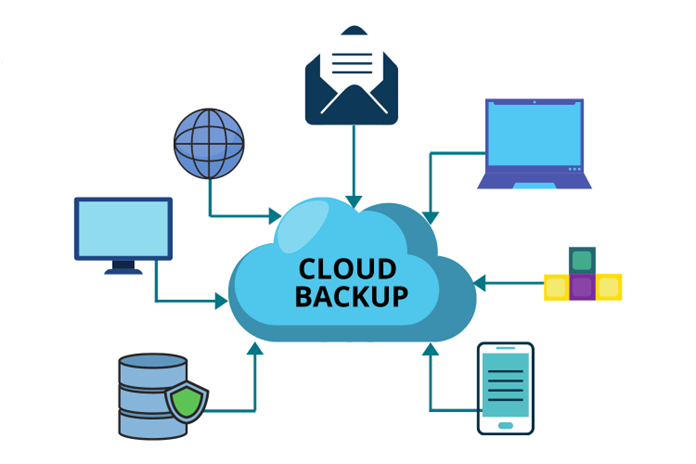

As Tech IE: In today’s digital world, photos are some of our most cherished memories, and losing them due to device failure, accidental deletion, or other mishaps can be devastating. Thankfully, cloud backup services offer a reliable solution to protect your photos and data. This article will walk you through what cloud backup is, its features and benefits, how to back up your photos, common troubleshooting tips, and some top cloud backup service providers, including Carbonite and IDrive.
What is Cloud Backup?
Cloud backup refers to the process of storing copies of your data, including photos, videos, documents, and other files, on remote servers via the internet. This allows you to access your data from anywhere, as long as you have an internet connection. Rather than relying solely on physical storage like hard drives or USB sticks, cloud backup leverages secure online storage, ensuring that your files are protected and easily retrievable.
The cloud is essentially a network of servers managed by third-party providers. These services automatically sync and back up your files, offering both personal and business users peace of mind when it comes to data security and accessibility.
Features and Benefits of Cloud Backup
1. Automatic Backup
Most cloud backup services offer automatic backup functionality. Once set up, your photos and other files are regularly backed up without the need for manual intervention, meaning your data is always up to date.
2. Remote Access
With cloud backup, your photos are stored online, allowing you to access them from anywhere, using any device with internet access. This is especially useful when traveling or when you need to retrieve important files from another location.
3. Data Protection
Cloud storage providers use strong encryption and security protocols to protect your data from unauthorized access. In case of hardware failure or accidental deletion on your device, your photos are safe and secure in the cloud.
4. Scalability
Cloud services typically offer flexible storage plans. You can easily upgrade or downgrade your storage capacity depending on your needs. This scalability makes it ideal for both individual users and businesses with varying storage requirements.
5. Versioning
Many cloud backup services allow you to keep different versions of your photos, meaning that if you accidentally overwrite or delete a photo, you can restore an earlier version.
6. Reduced Risk of Data Loss
Backing up photos to the cloud reduces the risk of data loss due to hardware failure, theft, or natural disasters. Even if your device is damaged or stolen, your photos are securely stored and can be restored from the cloud.
How to Backup Photos to the Cloud
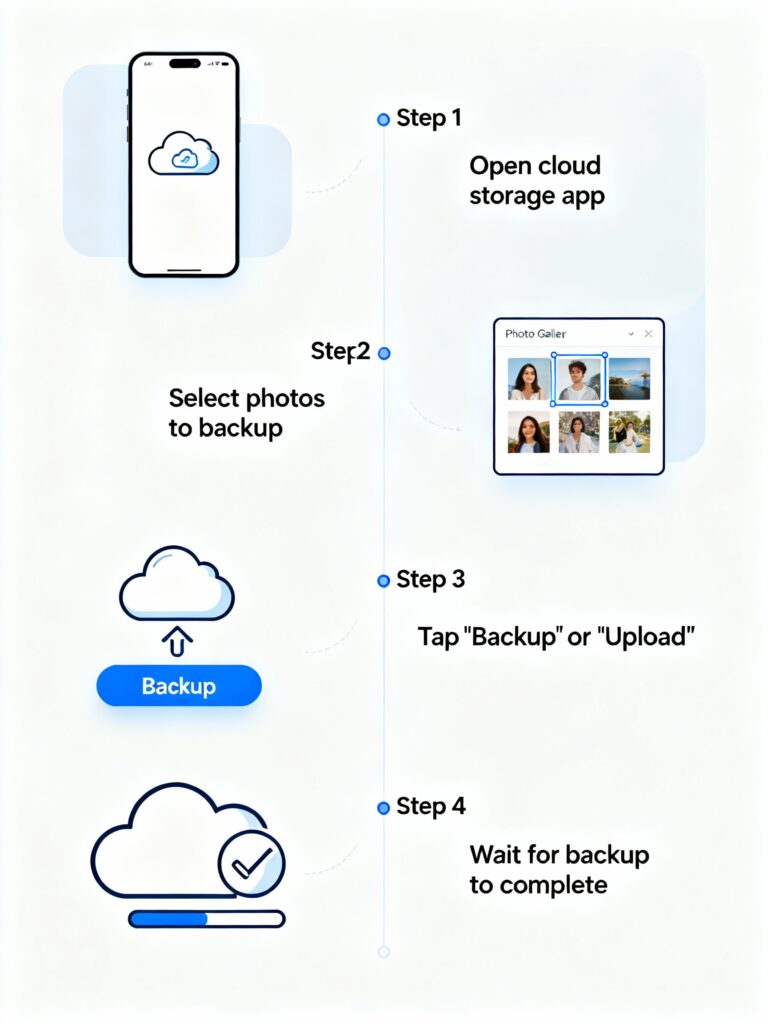
The process of backing up your photos to the cloud may vary slightly depending on the service provider you choose, but the general steps are fairly similar. Here’s how you can do it:
Step 1: Choose a Cloud Backup Provider
Before you begin, you’ll need to choose a cloud backup service provider. Some of the most popular options include Carbonite, IDrive, Google Drive, and Dropbox. Each of these services offers different features, such as storage space, security, and file-sharing capabilities, so choose the one that best meets your needs.
Step 2: Create an Account
After selecting your preferred provider, you’ll need to create an account. For example, if you choose Carbonite, you’ll first need to sign up and create your Carbonite login account. Similarly, if you opt for IDrive, you’ll need to create an IDrive login account.
Step 3: Install Backup Software or App
Once you’ve set up your account, the next step is to download and install the cloud backup software or app. Many providers offer desktop and mobile apps, making it easy to back up your photos from any device.
Step 4: Select Files and Folders to Backup
After installation, open the cloud backup application and select the photos and folders you want to back up. You can choose specific folders (e.g., your photo album) or let the service automatically detect and back up all image files on your device.
Step 5: Start the Backup Process
Once your files are selected, you can initiate the backup process. Most cloud services offer incremental backups, which means that after the initial backup, only new or changed files will be uploaded in subsequent backups. This helps save time and bandwidth.
Step 6: Monitor Backup Status
Most services provide an easy-to-use interface where you can monitor the status of your backup. You can check the progress and verify that your photos are being uploaded successfully. Once the process is complete, you can access your photos securely through the cloud.
Step 7: Set Up Automatic Backup (Optional)
To ensure your photos are always backed up, consider enabling the automatic backup feature. This way, the cloud service will continuously back up your new photos and any changes without requiring any manual intervention.
Troubleshooting Tips
While cloud backups are reliable, there can be occasional issues. Here are some common troubleshooting tips:
- Slow Backup Speed
- Check your internet connection speed. A slow connection may delay the upload of large files.
- Consider adjusting the settings to limit upload speed or back up smaller batches of photos at a time.
- Failed Backup
- If the backup fails, verify that your internet connection is stable.
- Ensure there’s enough available storage on your cloud account. If you’ve run out of space, consider upgrading your storage plan.
- Restart the backup app or your device, and try the process again.
- Sync Issues
- Ensure that the cloud app is up to date. Some sync issues may arise from outdated software.
- If using a mobile device, check that the app has the necessary permissions to access your photos.
- Forgot Your Login Details
- If you forget your Carbonite login account credentials or encounter issues logging into your IDrive login account, use the “Forgot Password” feature on the provider’s website to reset your password.
- Contact Support
- If you encounter persistent problems, reach out to the provider’s customer support. For example, IDrive offers an IDrive support number you can call for assistance.
Top Cloud Backup Providers
1. Carbonite
Carbonite is a well-known cloud backup provider that offers automatic backups for photos and other files. Their service is user-friendly and ideal for individuals and businesses alike. They also provide additional features like external hard drive backup and remote file access.
2. IDrive
IDrive offers secure cloud backup services for photos, videos, and other important files. They support backup for multiple devices, including PCs, Macs, and mobile devices. With their mobile app, you can back up and access your photos on the go. IDrive also offers competitive storage options, making it an excellent choice for those looking for value.
3. Google Drive
Google Drive is a popular cloud storage solution that integrates seamlessly with Android devices. It offers 15 GB of free storage and provides additional space at affordable rates. Google Drive also allows you to back up and access photos and other files across devices using your Google account.
4. Dropbox
Dropbox is another highly regarded cloud storage service. Known for its ease of use and simple file-sharing capabilities, Dropbox allows you to upload and organize photos effortlessly. It also offers automatic backup options, ensuring your images are always stored securely.
5. Amazon Photos
For Amazon Prime members, Amazon Photos offers unlimited photo storage. It’s an excellent option for those with large photo libraries who need a cost-effective cloud backup solution.
Conclusion
Backing up your photos to the cloud is an essential step in protecting your digital memories. With features like automatic backups, remote access, and robust data protection, cloud backup services provide peace of mind, knowing that your photos are safe and easily accessible. By following the simple steps outlined in this article, you can easily set up your own cloud backup solution. If you encounter any issues, remember that support is available through services like the IDrive support number or Carbonite login account assistance. Stay safe and secure by choosing the right cloud backup provider for your needs!